Making custom books easier to build, and easier to take digital.
Pearson Collections lets instructors build a custom book from chapters of Pearson titles. I redesigned the creation flow so that a Collection was easier to start, track, and finish, and so that instructors could convert an existing print Collection into a digital eText on their own.
Pearson measured these business results after the redesign launched.
-
01
85% more subscriptions year over year
Total Collections subscriptions grew 85% compared with the year before the launch.
-
02
15% lift in digital conversions
More instructors chose digital, which supported Pearson's goal of moving custom course materials from print to eText.
-
03
A self-service path from print to digital
Instructors could turn an existing print Collection into a digital one themselves, without rebuilding it from scratch.
Pearson Collections lets instructors buy only the content they need instead of entire textbooks. They choose chapters from Pearson titles, add their own material, and share the resulting Collection with their class in print or digital form.
I was asked to improve the flow instructors use to create a Collection. Pearson was also moving many of its offerings to digital, so a second goal was to let instructors convert their existing print Collections to digital eTexts on their own. While simplifying the overall experience, I made several design changes specifically to encourage instructors to choose digital over print.
Pearson wanted instructors to move their Collections from print to digital, but the flow gave them no clear way to do it. The same flow also made other common tasks harder than they needed to be.
- To make a digital version of a print Collection, instructors had to choose "Copy" from the Options menu. Nothing about that label suggested conversion.
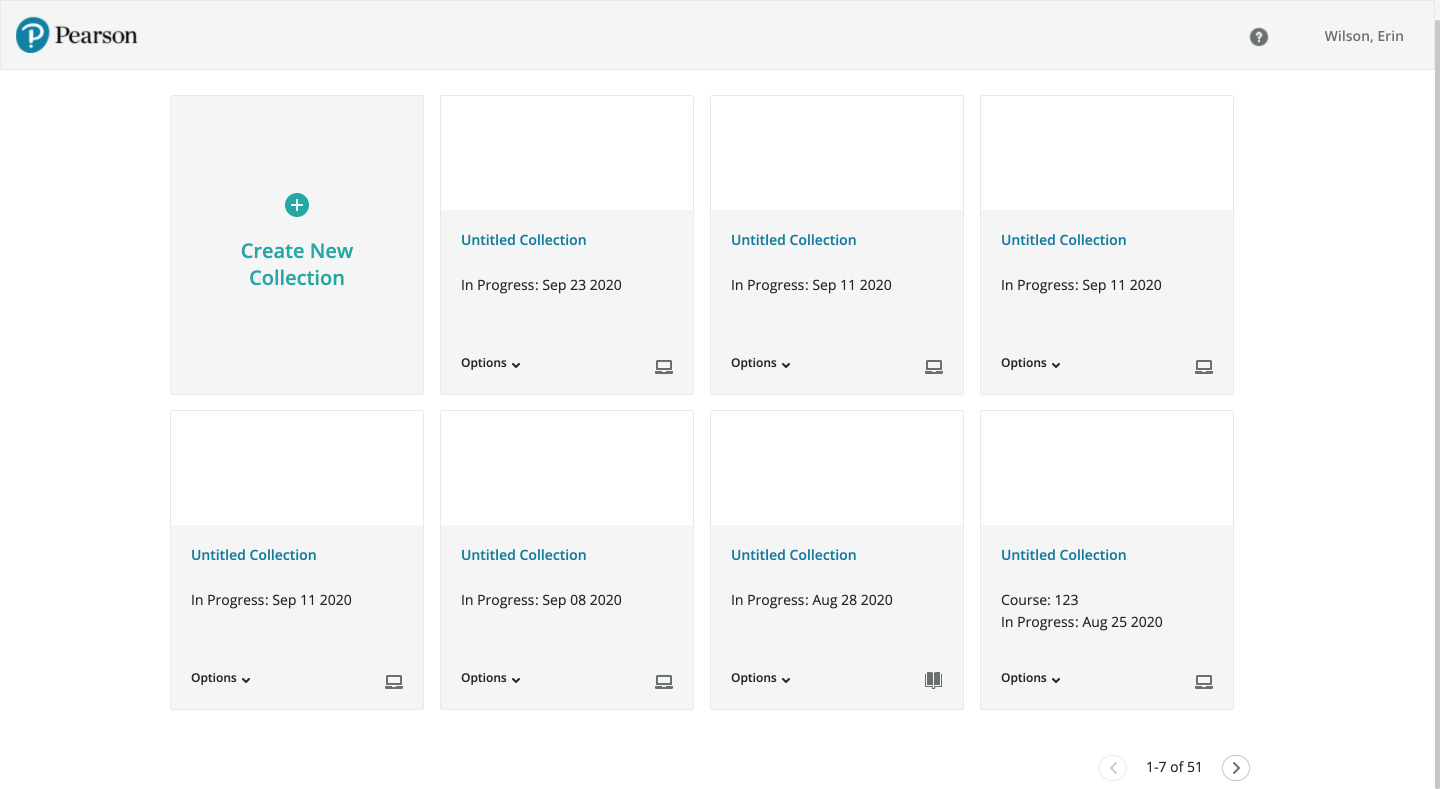
- Print and digital Collections were distinguished only by a small icon, and instructors in user testing didn't understand what the icon meant.
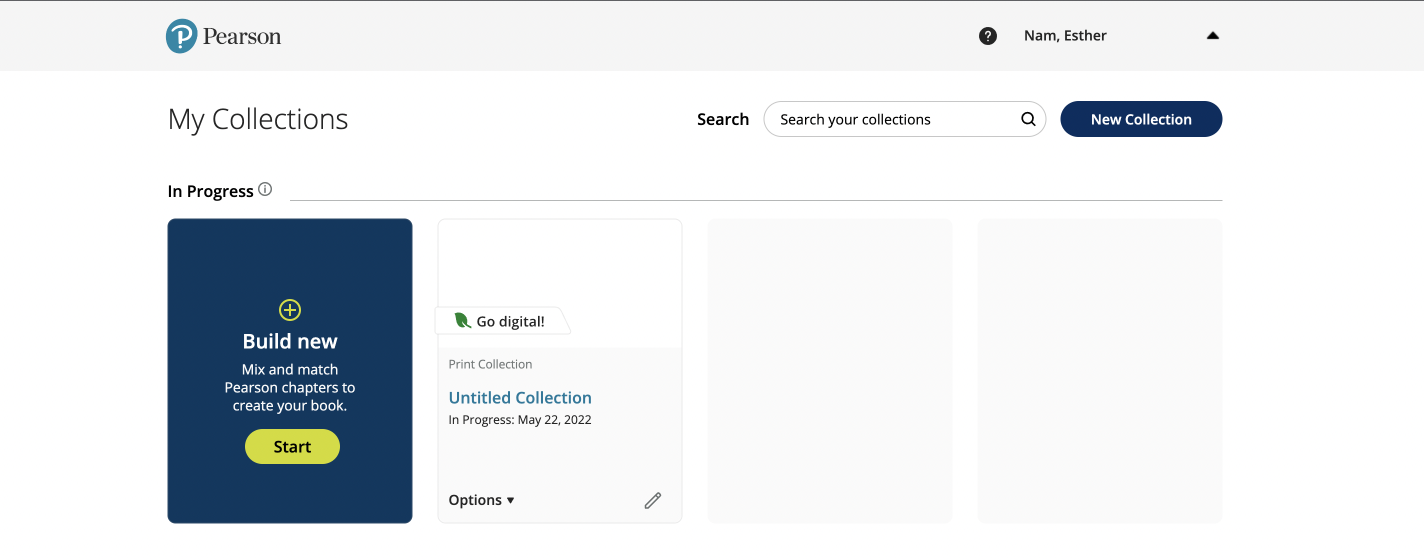
- The card for creating a new Collection looked like every other card, and it didn't explain what creating a Collection involved.
- The builder labeled each step with an icon, which didn't help instructors see what they had finished and what was left.
- Instructors learned about restrictions, such as the $15 price minimum, only when they tried to check out.
- Make it clear how to start a new Collection and what it involves.
- Make print and digital Collections easy to tell apart.
- Give instructors a direct, self-service way to convert print to digital.
- Help instructors track their progress and learn about restrictions before they matter.
I made six changes across the My Collections page and the builder. The first three address the home page, and the last three address creating and finishing a Collection.
A start card that stands apart
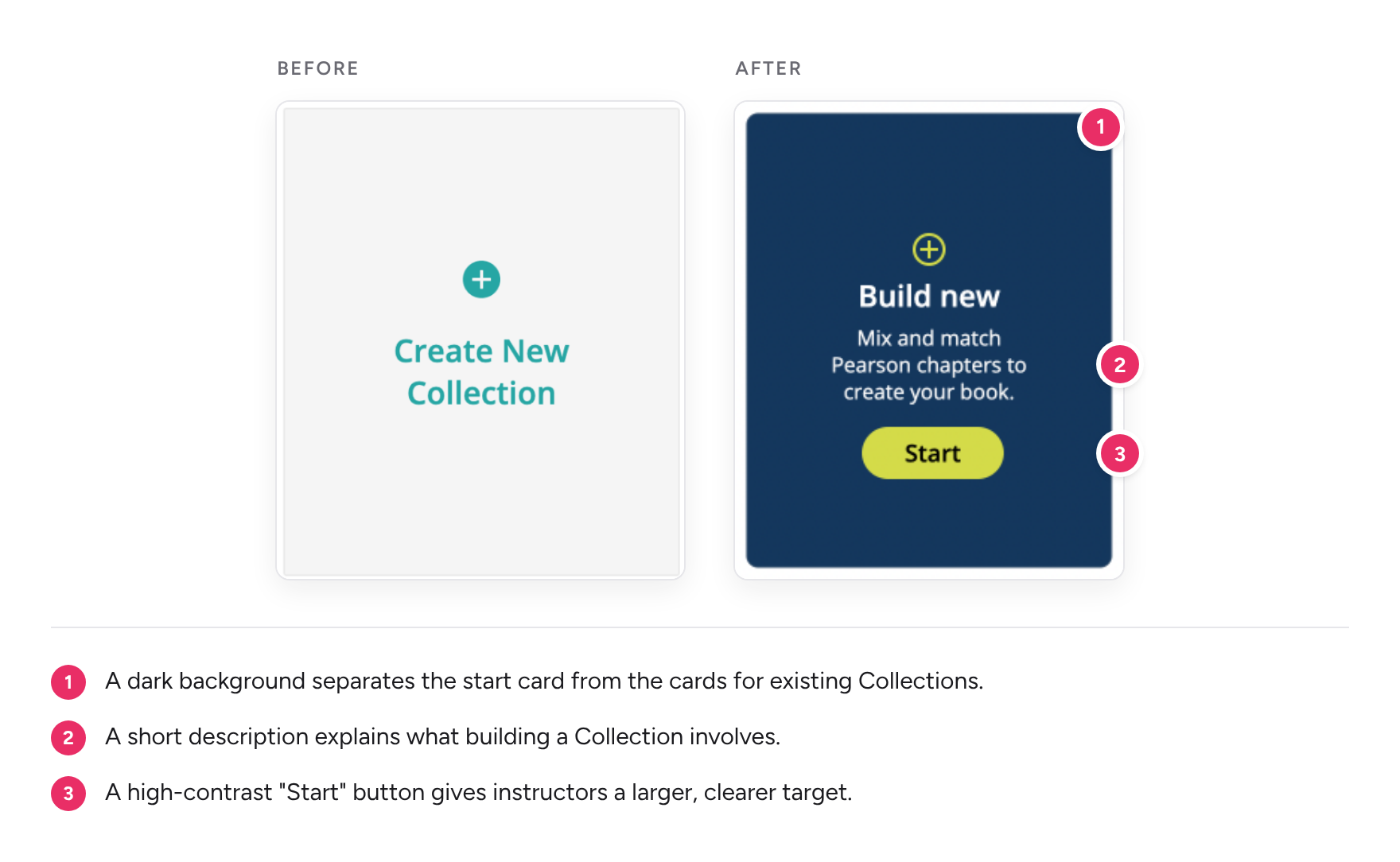
The new "Build new" card uses a dark background to separate it from the cards for existing Collections. A short description explains what building a Collection involves, and a high-contrast "Start" button gives instructors a larger, clearer target.
Cards that show print or digital
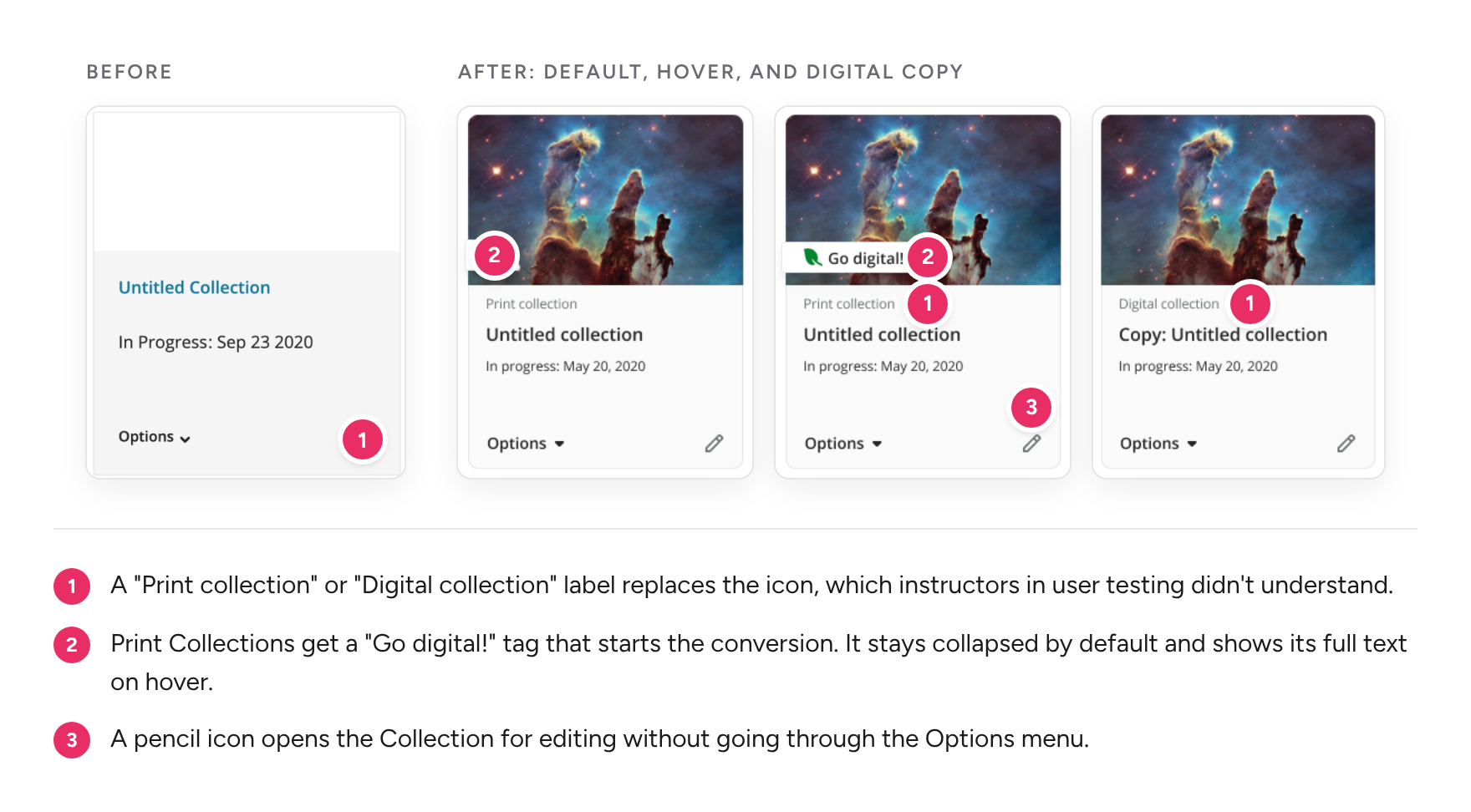
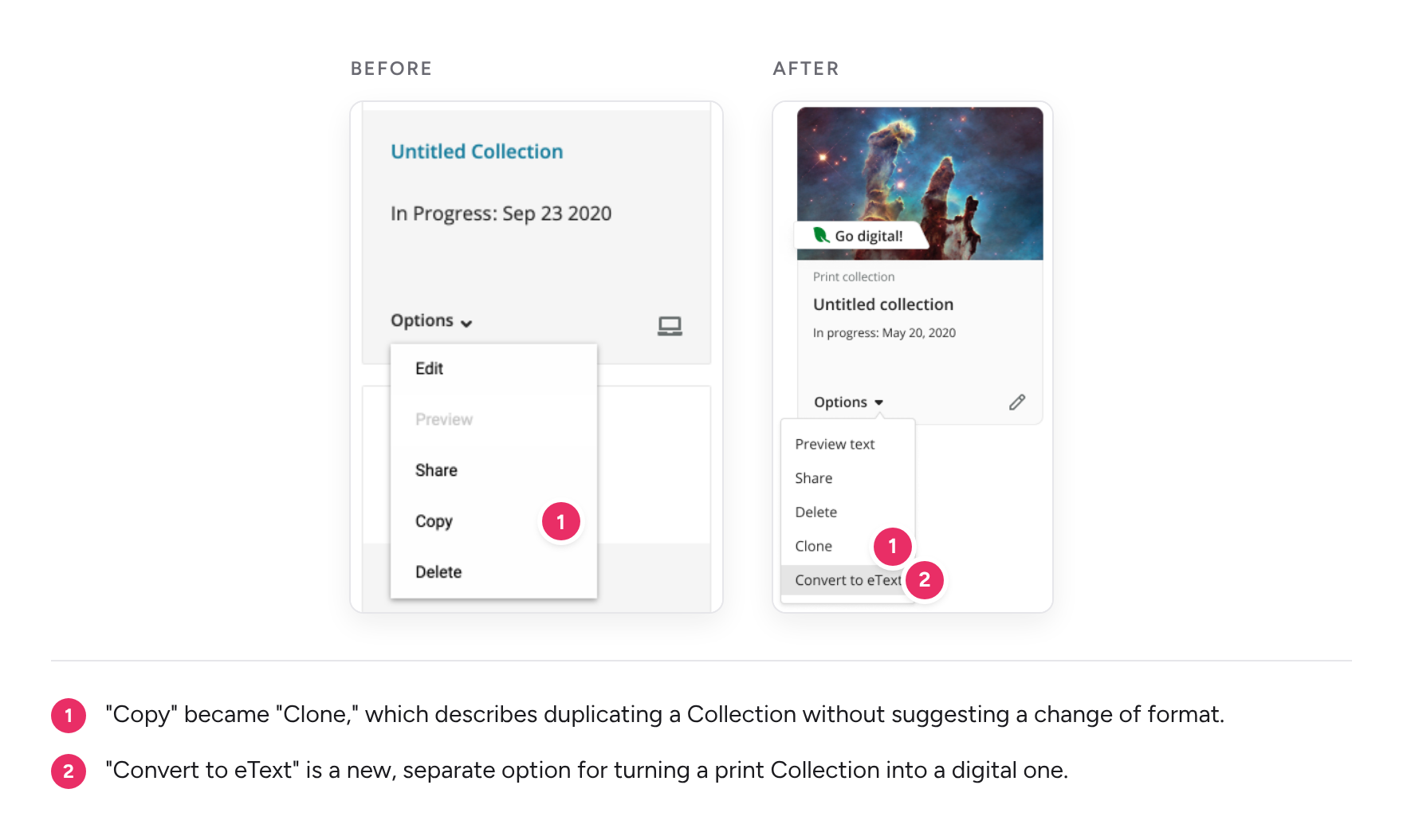
Because instructors in user testing didn't understand the original icon, I replaced it with a plain-text "Print collection" or "Digital collection" label. Print Collections also got a "Go digital!" tag that starts the conversion. To keep the page calm, the tag stays collapsed and shows its full text on hover.
I also added a pencil icon to each card, so instructors can open a Collection for editing without first expanding the Options menu.
A menu option that names the conversion
Conversion had been hidden behind "Copy," so I added "Convert to eText" as its own option in the Options menu. I renamed "Copy" to "Clone," which describes duplicating a Collection without suggesting a change of format.
Choosing print or digital first
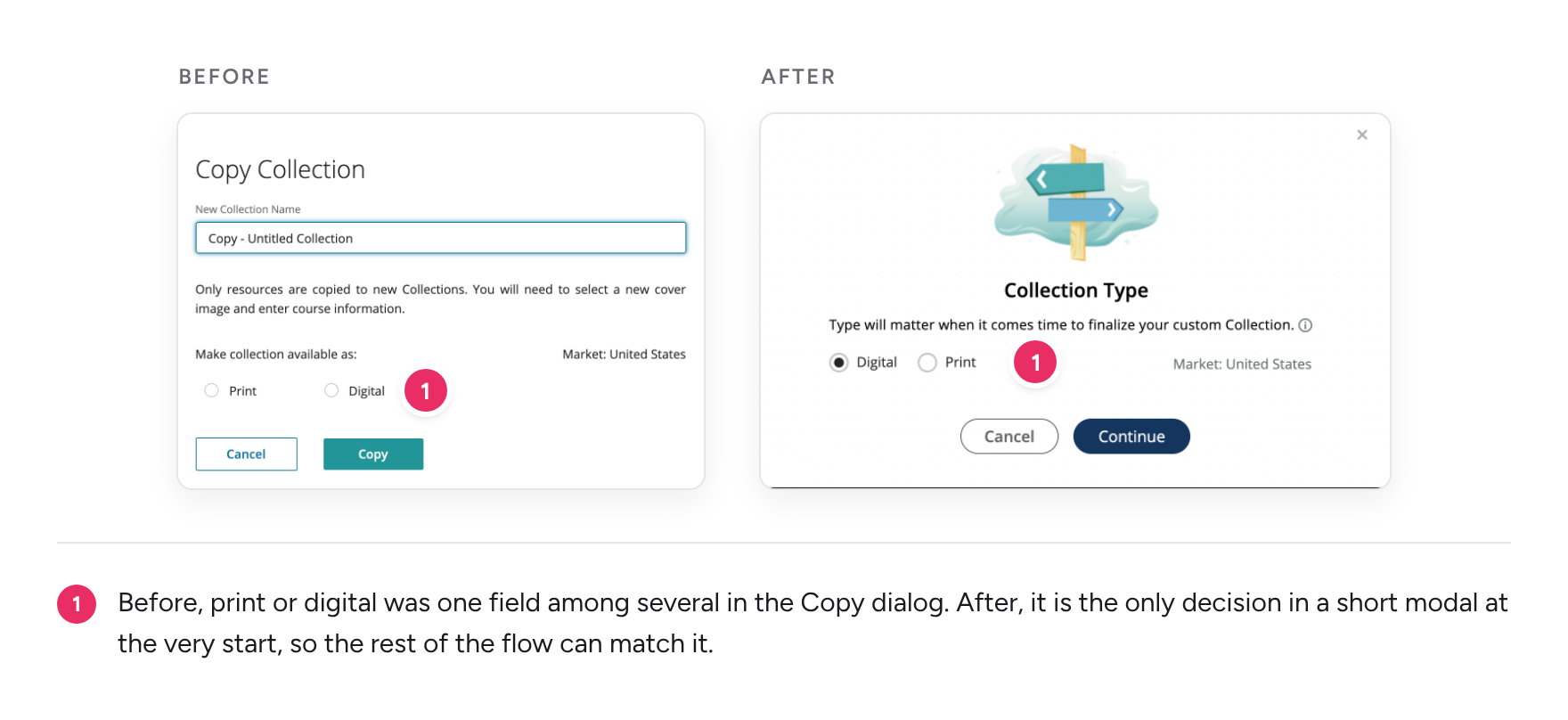
The steps for creating a Collection differ depending on whether it's print or digital. I moved that choice to the very beginning, in a short modal, so the rest of the flow could match the instructor's choice.
A checklist that tracks progress
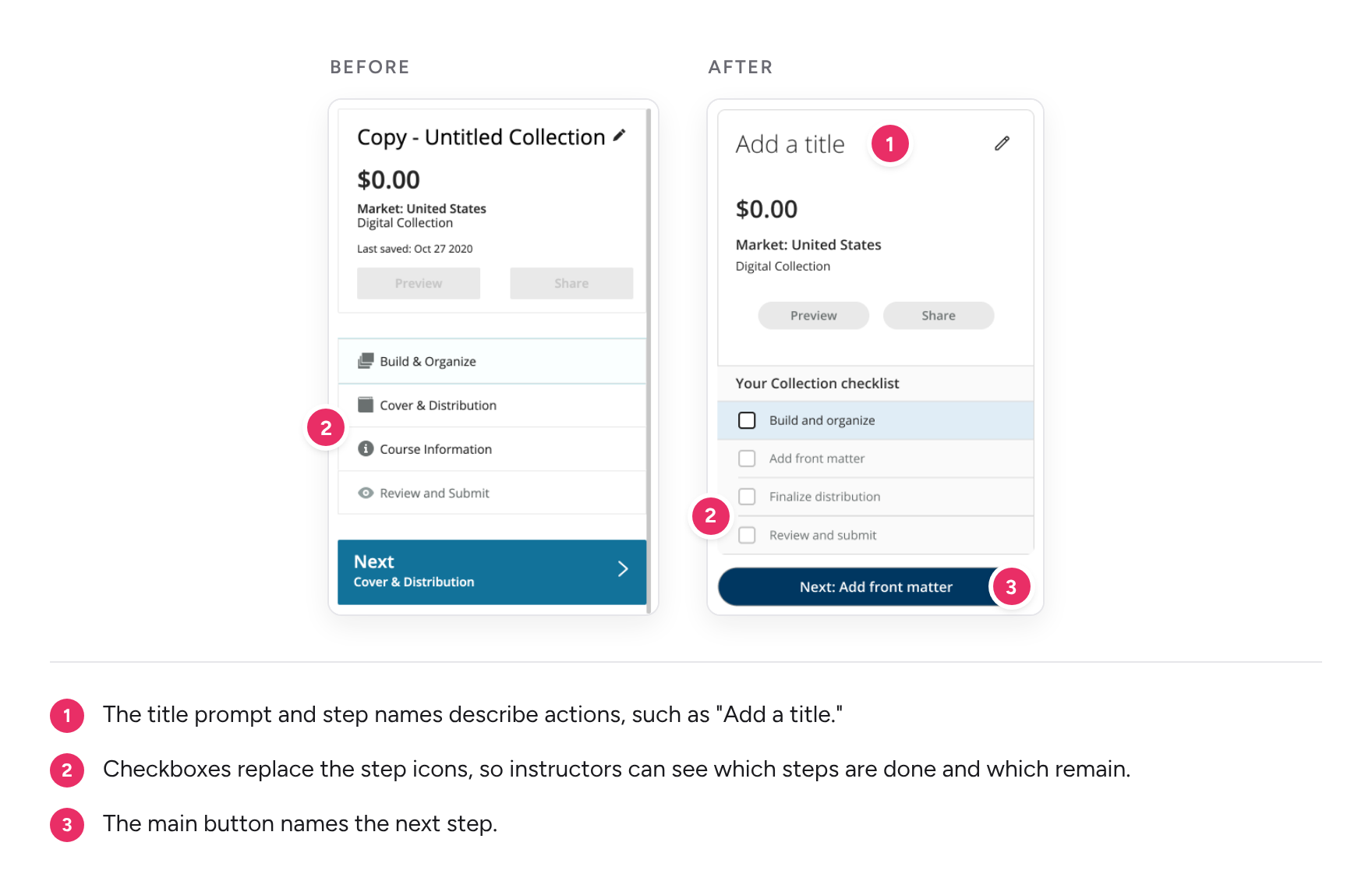
In the builder, I replaced the step icons with checkboxes, so instructors can see which steps they've finished and which remain. I also rewrote the step names and the title prompt so that each one describes an action.
Tooltips that explain restrictions up front
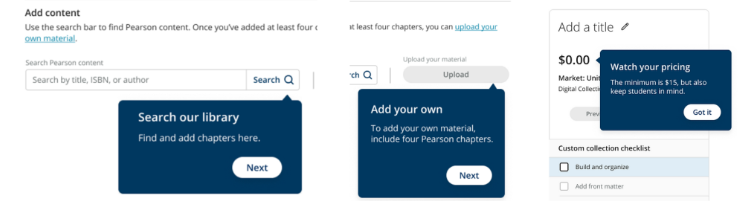
I added short onboarding tooltips that explain how to find chapters, how to upload your own material, and what limits apply. For example, one tooltip explains the $15 price minimum while the instructor is still building, instead of at checkout.
I worked with our copywriter on the language throughout the flow, including the card labels and the tooltips. I checked in often with the product team to review expectations, and I worked with my design team lead on the final visuals.